Wiring the Indicator LEDs
Three indicator LEDs — red, green, and blue — provide visual feedback whose meaning is defined in firmware. You decide what each one signals (e.g., blink blue when a phone notification is unread; solid red while an alarm is sounding).
How LED Drive Circuits Work
An LED needs two things: current flowing in one direction, and a resistor to limit how much current flows. On a 3.3 V GPIO pin:
GPIO pin ── [resistor] ── [LED anode (+)] ── [LED cathode (−)] ── GND
- GPIO HIGH (3.3 V): current flows through the resistor and LED → LED is on
- GPIO LOW (0 V): no voltage difference across the circuit → LED is off
The resistor value depends on the LED's forward voltage (Vf), which varies by colour:
| Colour | Typical Vf | Resistor | Approx. current |
|---|---|---|---|
| Red | 2.0 V | 220 Ω | (3.3 − 2.0) / 220 ≈ 5.9 mA |
| Green | 3.0 V | 100 Ω | (3.3 − 3.0) / 100 ≈ 3 mA |
| Blue | 3.2 V | 100 Ω | (3.3 − 3.2) / 100 ≈ 1 mA |
The ESP32-S3 GPIO can source up to 40 mA per pin — all three are well within limits.
The longer leg is the anode (+); the shorter leg is the cathode (−). Current flows anode to cathode. Some LEDs also have a flat edge on the cathode side of the lens.
Pin Table
| LED | Signal name | Wire colour | ESP32-S3 pin | GPIO # | Resistor |
|---|---|---|---|---|---|
| Red | LED_RED | Red | GPIO35 | 35 | 220 Ω |
| Green | LED_GREEN | Green | GPIO36 | 36 | 100 Ω |
| Blue | LED_BLUE | Blue | GPIO37 | 37 | 100 Ω |
GPIO 35, 36, and 37 sit adjacent to the SNOOZE and DISMISS button pins (38, 39) on the right-side header of the DevKitC-1 — this groups all user-interface signals on one edge of the board.
Wiring Diagram
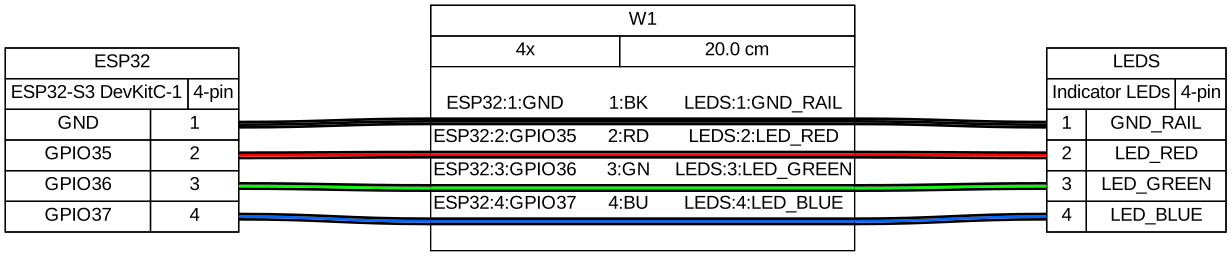
All three LED cathodes connect to the GND rail. Run one wire from the ESP32's GND pin to the breadboard GND rail; all cathodes tap from there.
Verification
Flash a quick blink test to confirm each LED before running the full firmware:
#include "driver/gpio.h"

#define LED_RED   GPIO_NUM_35
#define LED_GREEN GPIO_NUM_36
#define LED_BLUE  GPIO_NUM_37

void app_main(void) {
    gpio_config_t cfg = {
        .pin_bit_mask = (1ULL << LED_RED) | (1ULL << LED_GREEN) | (1ULL << LED_BLUE),
        .mode         = GPIO_MODE_OUTPUT,
    };
    gpio_config(&cfg);

    while (1) {
        gpio_set_level(LED_RED,   1); vTaskDelay(pdMS_TO_TICKS(500));
        gpio_set_level(LED_RED,   0);
        gpio_set_level(LED_GREEN, 1); vTaskDelay(pdMS_TO_TICKS(500));
        gpio_set_level(LED_GREEN, 0);
        gpio_set_level(LED_BLUE,  1); vTaskDelay(pdMS_TO_TICKS(500));
        gpio_set_level(LED_BLUE,  0);
    }
}
Each LED should blink in sequence. If one stays dark, check polarity (swap the LED legs) and verify the resistor is in series — not bridging the LED to GND directly.
Gotchas
LED polarity matters — unlike buttons, LEDs are polarised. Inserting one backwards will not damage it, but it will not light up either. Swap the legs if an LED stays dark.
Blue and green Vf is close to 3.3 V — these LEDs are dimmer than red because there is less headroom for the resistor to limit current. This is normal. Do not reduce the resistor below 100 Ω or the GPIO current limit could be exceeded on lower-Vf specimens.
LED meaning is firmware-defined — the hardware only provides the drive circuitry. The red/green/blue labels in this doc refer to the LED colours, not to any assigned purpose. Assign meanings in your application code.